
Settings
Search & Notifications
How to quickly find accounts and bookings with the search and keep track of your notifications.
Golden Ratio Academy
This video shows you the search and the notifications at the top right of the app.
How to follow this video
- At the top right, tap the magnifying glass. With it you search the whole app: bookings, accounts and categories.
- Type a few letters, in the video for the daily savings account. The result appears right away.
- Tap the result and you are straight in the account. The cross at the top takes you back.
- You find a booking the same way: type “Rent” and tap the result. You see amount, account and category.
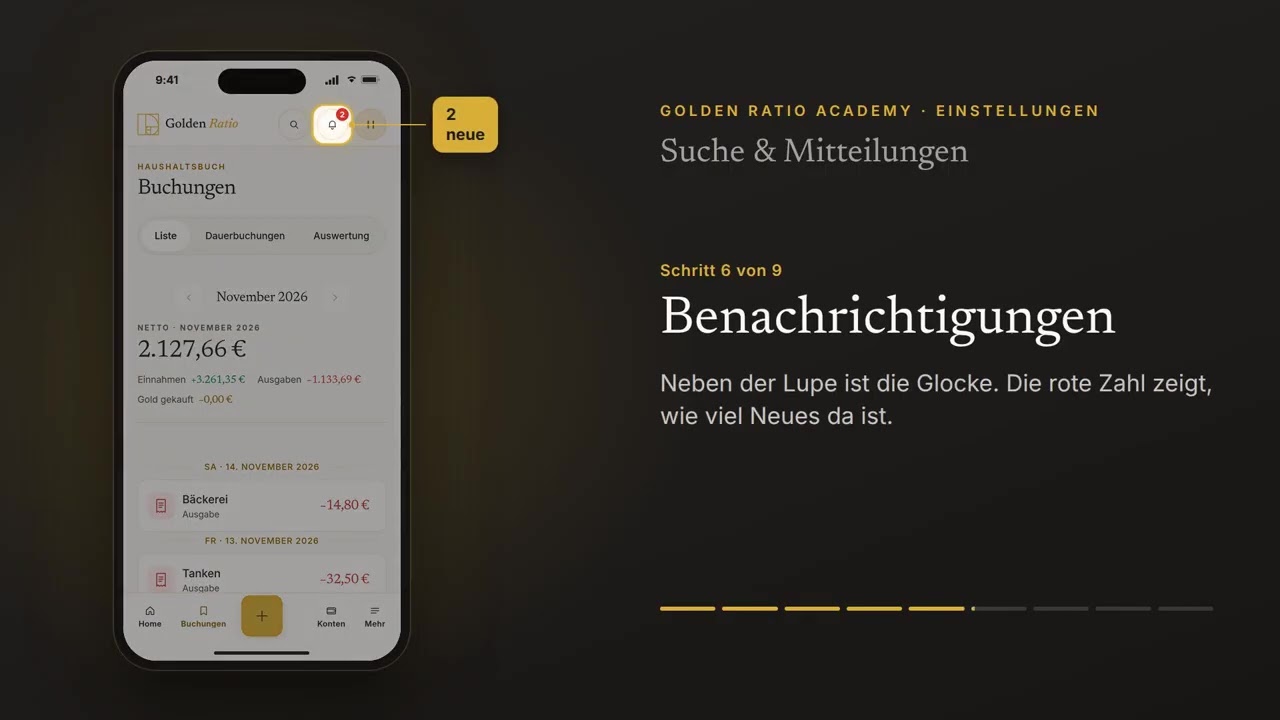
- Next to the magnifying glass is the bell. The red number tells you how many new messages there are.
- New messages are coloured and have a small dot. What you have already read is white.
- Tap a message and the app takes you to the right place, in the video to the receipts.
- With “Mark all as read” you tick everything off at once. Then the red number is gone.
Directly in the browser (web app)
→ app.golden-ratio-united.com